


To perform electronic declaration, the broker (declarant) must obtain an electronic digital signature (key and certificates).
Accredited Key Certification Centers (KCCs):
- State Tax Service - ca.tax.gov.ua (ATSK certificates - sfs_cer.zip ).
When receiving an electronic signature, remember (write down) the password to the key, as it will be used when signing electronic declarations and other electronic documents.
The received personal certificates, together with the ACSC certificates, will need to be copied into the QDProfessional program (see section 3.4).
The declarant's workplace must have an Internet connection and a mail server where a mailbox is registered, from which messages will be sent to the Information Technology Department of the State Fiscal Service of Ukraine and return messages will be received accordingly.
For electronic declaration purposes, create a separate mailbox that will contain only correspondence related to electronic declaration.
We recommend creating an individual mailbox for each broker (declarant).
To enable the electronic declaration mode in the QDProfessional program, you need to install the Digital Signature Library (IVKLib.exe), the distribution of which is located in the section Downloading.
After "downloading" the distribution kit from the site, run the digital signature library installation program IVKLib.exe. For the program to work correctly, the installation must be done by a user with administrative rights.
The installation program will copy the necessary files and libraries to your computer and make appropriate changes to the system registry.
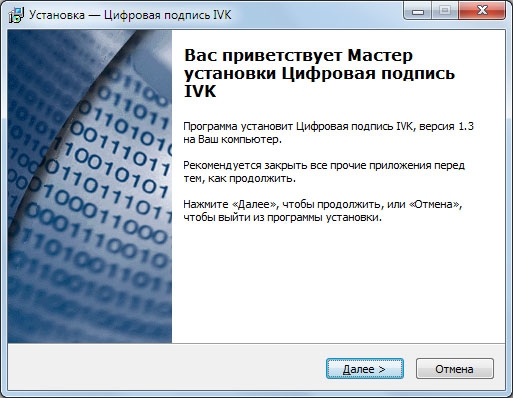
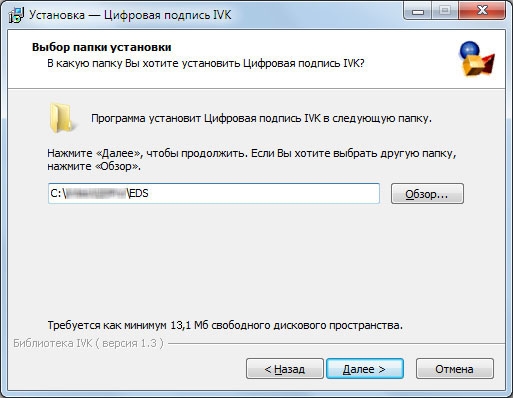
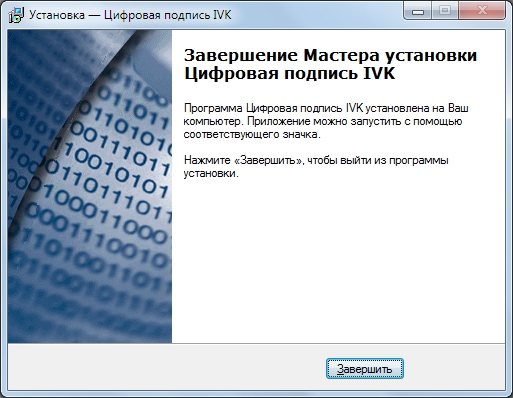
After the Digital Signature Libraries Installation Wizard is complete, you can launch the QDProfessional program. Please note that an additional item has appeared in the main menu of the program "QDPro: Declarations" - "Digital Signature".
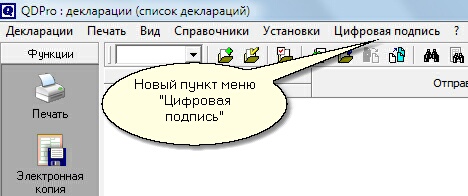
"Digital Signature" includes a drop-down menu, the elements of which allow you to configure the modes of working with electronic messages, set the types of documents that will be transmitted to customs authorities in electronic form, configure email settings, etc.
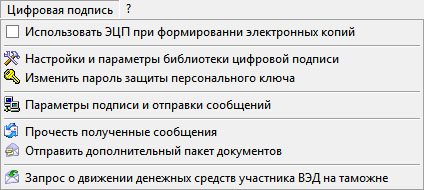
The top menu "Digital Signature" - "Use EDS to generate electronic copies" will allow you to define the types of declarations that will be transmitted electronically. To include or exclude a document from the list, you must left-click in the far right column of the list of declaration types.
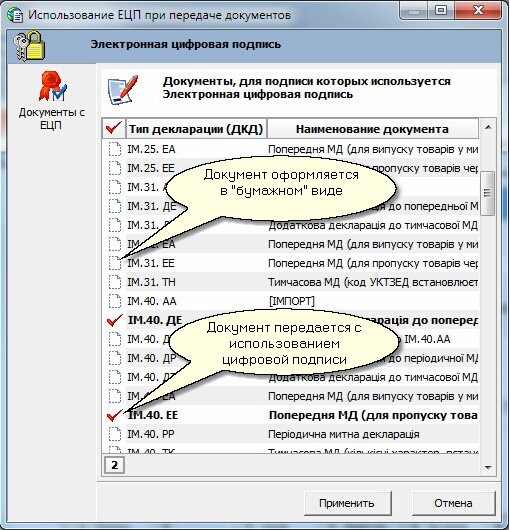
The checkboxes in the "Use of electronic signature when transferring documents" window affect only the operation of the "electronic copy" function (F5 in the declarations list or in the editing window).
If the declaration type is specified, the QDProfessional program requests the key and sends the declaration by email.
If you uncheck (do not check), an electronic copy is created in *.imfx format.
The marks do not affect the operation of the "Electronic copy Information terminal" function.
The "Signature and Messaging Settings" menu item is designed to configure email and email settings.
In the "General Settings" section, check the "Formation of external digital signature" box.
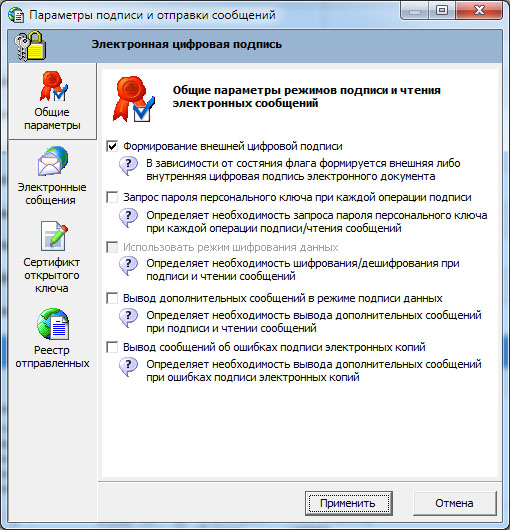
If different keys will be used when sending messages, you must set the "Request password..." flag.

Otherwise, the request for the key with the password will only be made upon initial sending/reading of the message after launching the program, but subsequent actions are performed with the key already in memory without unnecessary requests.
Flags for displaying additional messages should be set in case of emergency situations (for example, error messages appear during the formation of digital signatures). Setting these flags allows you to get an extended description of the error, which will significantly facilitate its search and elimination.
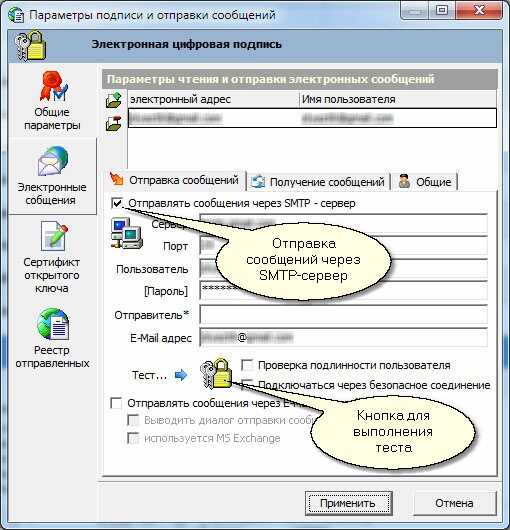
The "Sending messages" tab is designed to set the parameters for sending electronic messages.
Messages are sent through the broker's (declarant's) mailbox (see clause 1.2).
The QDProfessional program supports two options for sending messages:
- directly through the SMTP server, the parameters of which are set in this mode;
- using the email client that is used by default in the system.
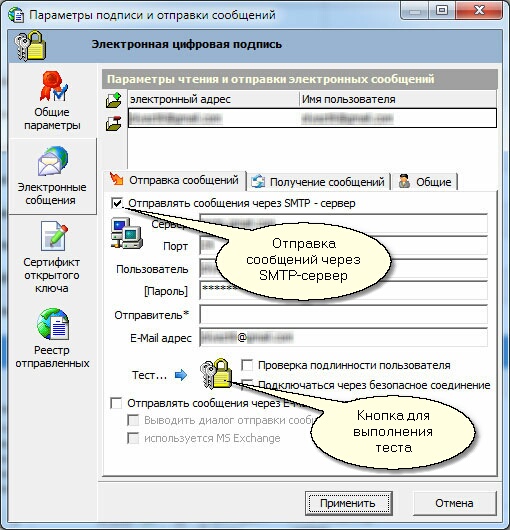
де
| Server | Outgoing mail server |
| Port | Port |
| User | Account name |
| [Password] | The password used to log in to the mailbox |
| Sender* | Name of the organization or surname of the broker (declarant) on whose behalf the declarations will be sent (optional) |
| Email address | Full mailbox name, including username, "@" symbol, and domain |
We recommend that you consult your system administrator to make decisions about these settings.
The sending settings for commonly used free mail servers are listed in the table.
| gmail.com | ukr.net | meta.ua | yahoo.com | |
| Server | smtp.gmail.com | smtp.ukr.net | smtp.meta.ua | smtp.mail.yahoo.com |
| Port | 465 | 465 | 465 | 465 |
| User | Broker's (declarant's) email address in the format xxxxx@zzzzz | |||
| [Password] | Broker's (declarant's) mailbox password | |||
| Sender | Name of the organization or surname of the broker (declarant) on whose behalf the declarations will be sent (optional) | |||
| E-Mail address | Broker's (declarant's) email address in the format xxxxx@zzzzz | |||
| User Authentication Check |  | | | |
| Connect via a secure connection | | | | |
After entering the parameters, you can use the connection testing option, for which you need to click the "Test" button.
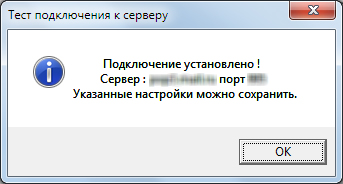
After the connection test is completed, a message will be displayed with the connection test results.
The settings in the "Receiving Messages" tab are similar to the settings in the previous mode, except that in the previous mode, the SMTP server settings were configured, while this mode is intended for configuring the POP3 server settings.
Where
| Server | Outgoing mail server |
| Port | Port |
| User | Account name |
| [Password] | The password used to log in to the mailbox |
We recommend that you consult your system administrator to make decisions about these settings.
Enter the broker's (declarant's) email address in the field "Email address for receiving customs replies". Messages from customs authorities will be sent to this address.
Options for receiving messages for commonly used free mail servers are listed in the table.
| gmail.com | ukr.net | meta.ua | yahoo.com | |
| Server | imap.gmail.com | imap.ukr.net | pop.meta.ua | imap.mail.yahoo.com |
| Port | 995 or 993 | 993 | 993 | 993 |
| User | Broker's (declarant's) email address in the format xxxxx@zzzzz | |||
| [Password] | Broker's (declarant's) mailbox password | |||
| Connect via secure connection | POP3 or IMAP4 | IMAP4 | POP3 | IMAP4 |
Allows you to configure work with one or more email accounts, and enables/disables the service for checking incoming email messages.